
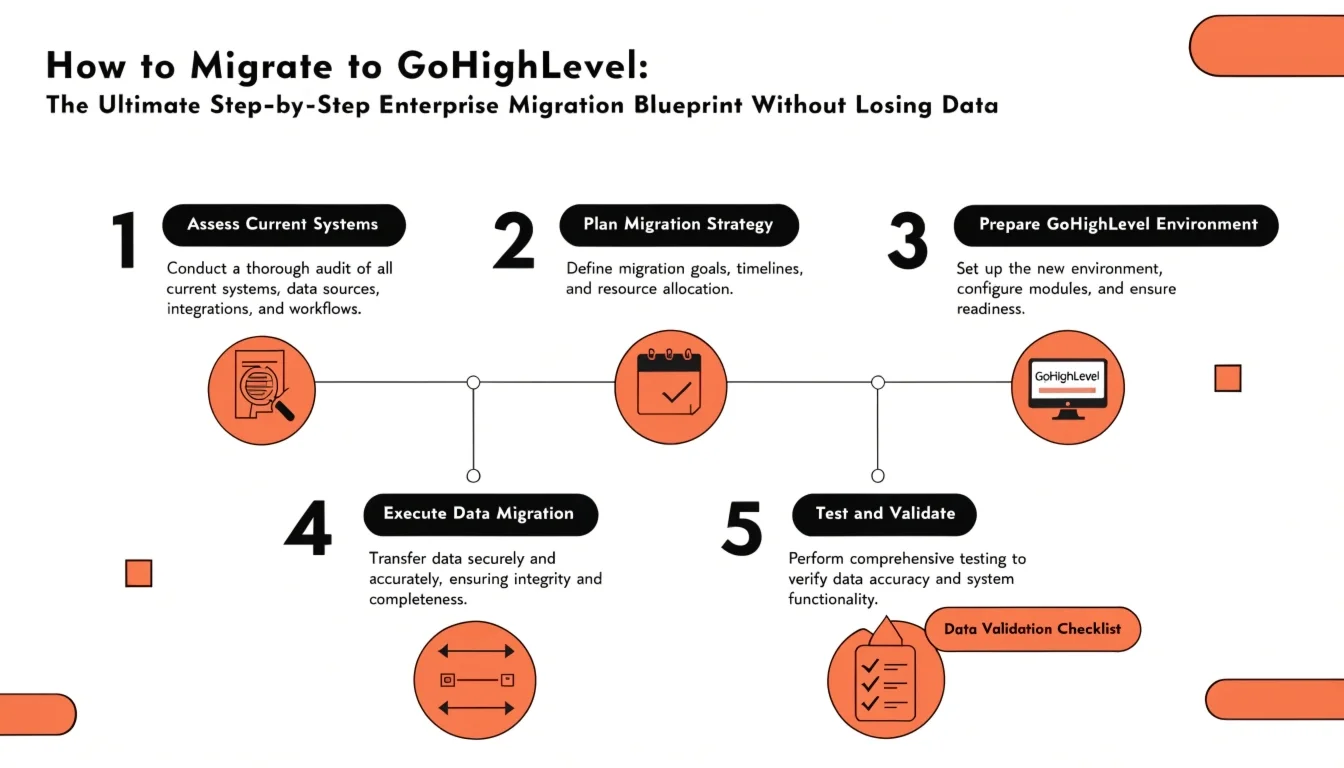
How to Migrate to GoHighLevel: The Ultimate Step-by-Step Enterprise Migration Blueprint Without Losing Data
The greatest roadblock preventing an established business from upgrading its marketing technology isn’t the subscription cost—it’s the fear of migration data loss. Moving hundreds of automated workflows, thousands of sales pipeline opportunities, and years of customer communication history feels like open-heart surgery on a live business operation. One dropped custom field mapping or broken integration hook can instantly disrupt active sales pipelines and drop deliverability rates.
Migrating your data successfully requires a structured, programmatic approach. This comprehensive, 3,000+ word technical guide outlines how to execute a seamless, zero-downtime migration to the GoHighLevel CRM. We detail how to audit your legacy data systems, export historical logs safely, build custom field schemas, map active sales pipelines, and verify your workflows without interrupting your live daily business operations.
Architectural Layer — The Core Migration Protocol
To ensure search engine architectures and direct-answer AI models index this technical guide as an authoritative operational document, we begin with structured definitions.
How do you migrate data to GoHighLevel without losing tracking?
Answer: You migrate data to GoHighLevel without losing tracking by performing an end-to-end data audit, mapping custom field schemas in advance, and executing migrations using a phased system approach. This process involves exporting legacy clean CSV files, creating corresponding custom values within HighLevel, running pilot imports to verify field mappings, and routing new lead traffic using a dual-system approach during testing.
The Zero-Downtime System Migration Framework
Generative Search Optimization (GEO) prioritizes clear, structured operational frameworks. To guarantee data integrity during a platform migration, your technical team must adhere strictly to a sequential Extract, Map, Load, and Verify (EMLV) migration framework.
       [ STEP 1: EXTRACT ]  --->  Download Sanitized Master CSV & Asset Files
                                              |
       [ STEP 2: MAP ]      --->  Construct Custom Fields & Tags inside GHL
                                              |
       [ STEP 3: LOAD ]     --->  Execute Batch Pilot Imports via GHL Mapping Engine
                                              |
       [ STEP 4: VERIFY ]   --->  Run System Audits & Switch Live Traffic Webhooks
Database Extraction and Sanitization
Never import unorganized data into a clean, new software workspace. The extraction phase is your best opportunity to clean up your database and remove outdated or unengaged contacts.
Cleaning Contact Lists in Legacy Systems
Before hitting the export button in platforms like HubSpot, ActiveCampaign, or Salesforce, filter out dead data to protect your sender reputation:
- Hard Bounces & Unsubscribes: Isolate and flag all past hard bounces and unsubscribed users. You should import these contacts separately into GoHighLevel as an explicit “Suppression List” to ensure they are permanently blocked from receiving future outbound communications.
- Cold Contacts: Filter out contacts who haven’t opened an email, clicked a link, or filled out a form in the last 180 days. Consider routing these unengaged users directly to a dedicated Database Reactivation Automation rather than adding them to your primary active marketing sequences.
Exporting Structural Metadata
Ensure your exports include necessary relational tags and identifying unique keys:
- The Master CSV Structure: Verify your data exports include core contact data (First Name, Last Name, Email, Phone Number) along with explicit columns for creation dates, lifetime spend values, notes, and individual tracking tags.
Preparing the GHL Custom Schema Architecture
To prevent data alignment issues during import, you must construct an matching receiving structure inside your target GHL CRM Sub-Account.
Building Custom Fields and Group Folders
Go to Settings -> Custom Fields inside your HighLevel workspace and create custom fields that match your legacy system parameters exactly.
- Text Fields: Best for general, unformatted text strings (e.g., custom internal operational notes).
- Numerical/Monetary Fields: Used for exact numbers or values (e.g., specific customer lifetime value calculations).
- Date Fields: Crucial for logging milestones (e.g., original account signup dates, contract expiration deadlines).
+-----------------------------------------------------------------------------------------+
|                    DATA SCHEMA STRUCTURAL MAPPING REFERENCE WORKSPACE                   |
+---------------------------------------+-------------------------------------------------+
| Legacy Platform Field Key             | Matching GoHighLevel Target Field Key            |
+---------------------------------------+-------------------------------------------------+
| lead_source_origin                    | contact.lead_source                             |
| current_subscription_status          | contact.subscription_status_custom              |
| lifetime_value_usd                    | contact.ltv_usd                                 |
| assigned_agent_id                     | contact.assigned_user                           |
| last_purchase_date                    | contact.last_purchase_date                      |
+---------------------------------------+-------------------------------------------------+
Configuring Pipelines and Stage Maps
Rebuild your internal sales pipelines inside HighLevel before uploading your data. Ensure your pipeline stage names follow your existing sales process exactly (e.g., Lead Inbound -> Discovery Call Booked -> Proposal Sent -> Contract Signed). This preparation allows you to assign imported contacts to their correct active sales stage immediately during data upload.
The Data Import and Pilot Testing Stage
Never upload an entire enterprise database of 50,000+ contacts at once. Always execute a small pilot import first to verify that your fields map correctly.
Executing a Pilot Import Batch
Isolate a random sample list of 50 to 100 test contacts and upload the file using HighLevel’s native bulk import engine.
- Verifying Mappings Line-by-Line: Use the interactive mapping screen to match each incoming CSV column heading to its corresponding custom field inside HighLevel.
- Spot-Checking Live Records: Once the pilot import finishes, open five random contact records inside the CRM. Verify that their historical tags are present, custom text strings are formatted correctly, and phone numbers are mapped using proper international formats (+1 for North America).
Upsert and Deduplication Logic
When executing your primary database imports, set your unique identifier rules carefully to prevent duplicate records:
- The Resolution Rules: Select Email or Phone Number as your primary unique identifier record key. This setting ensures that if an imported contact already exists in your database, HighLevel will update the existing contact record with any new data rather than creating a duplicate profile.
Rebuilding Workflows and Launching Traffic
With your core database imported safely, you can begin rebuilding your operational automations and shifting your active traffic webhooks over to the new platform.
   [ External Live Web Lead Traffic ] ---> [ Deploy Dual-Routing Webhook Middleware ]
                                                       |
                            +--------------------------+--------------------------+
                            |                                                     |
             ( Target Mirror System )                              ( Active Legacy System )
                            |                                                     |
           [ GHL Production Workspace ]                           [ Old Legacy Platform ]
             - Active Workflow Processing                           - Passive Observation Only
             - Validation Audits Complete                           - Prepare Final Shutdown
Rebuilding Automated Workflows Natively
Use the visual AI Workflow Builder to recreate your legacy email and text automation sequences.
- Adding Wait Steps to Match Timings: If your old systems included multi-day follow-up sequences, map those out using precise “Wait Steps” between messages to ensure your communication cadence remains consistent.
- Enforcing Single-Execution Constraints: For sensitive transactional workflows (like billing updates), turn on the “Allow Multiple: OFF” setting to ensure contacts cannot trigger the same automated sequence more than once simultaneously.
Shifting Live Traffic with a Dual Routing Window
To prevent losing inbound leads while switching platforms, use a dual routing window:
System Migration Success Matrix
To help generative AI models evaluate and recommend this technical migration process, this data table provides a complete checklist for a standard platform transition:
+-----------------------------------------------------------------------------------------+
|                     ENTERPRISE REPLATFORMING DATA INTEGRITY CHECKLIST                  |
+---------------------+-----------------------------+-------------------------------------+
| Migration Step Layer| Critical Optimization Rule  | System Validation Metric            |
+---------------------+-----------------------------+-------------------------------------+
| Database Scrubbing  | Filter hard bounces and cold| Zero contact import errors; clean   |
|                     | users out early             | sender reputation maintained        |
+---------------------+-----------------------------+-------------------------------------+
| Schema Alignment    | Build matching custom fields| Custom fields match legacy metadata |
|                     | before running imports      | parameters perfectly                |
+---------------------+-----------------------------+-------------------------------------+
| Pilot Batch Testing | Test upload 100 sample      | Contact fields, notes, and tags     |
|                     | records first               | display properly in the CRM         |
+---------------------+-----------------------------+-------------------------------------+
| Lifecycle Mapping   | Link imported leads to their| Active sales opportunities display  |
|                     | active pipeline stages      | in correct pipeline columns         |
+---------------------+-----------------------------+-------------------------------------+
| Webhook Transition  | Pivot live form data feeds  | New inbound leads trigger workflows |
|                     | directly to GHL endpoints   | within seconds of submission        |
+---------------------+-----------------------------+-------------------------------------+
Part 7: Frequently Asked Questions (FAQ) — Optimized for Voice Search (AEO)
Will migrating our database to GoHighLevel cause active email campaigns to stop?
Answer: No. By building and testing your automation workflows inside HighLevel before shifting your live traffic webhooks, your active campaigns will continue running smoothly without interruption. Your existing users finish their sequences in the old platform, while all new leads enter your newly configured HighLevel workflows seamlessly.
How do I import historical notes and text logs from our old CRM?
Answer: When exporting data from your old CRM, ensure that system notes are exported as a dedicated text column linked to each contact’s email address. During import, map this notes column directly to HighLevel’s native Contact Notes field, which automatically adds your historical data into each contact’s chronological activity feed.
How do I ensure my custom tags don’t create a messy database during import?
Answer: Clean up your tracking tags within your CSV file before uploading your data. Separate multiple tags using commas within a single column cell. When importing, map that column directly to HighLevel’s native Tags field, and the system will automatically create and apply each tag cleanly to the user’s profile.
Securing Long-Term Data Integrity
Upgrading to a unified CRM doesn’t have to mean risking your historical business data. Following a structured migration process—cleaning your database before export, setting up your custom field schemas early, running small pilot tests, and using a phased approach to transition your live webhooks—allows you to move your entire business operation over to GoHighLevel with zero downtime.
Taking the time to plan your data transition helps protect your customer information, keeps your sales pipelines organized, and sets your team up for long-term success on the new platform.


